Manipulating molecules
You can move and rotate opened molecules relative to each other in the UI. This is useful for arranging them prior to dynamics, displaying ligands near their binding sites, positioning nucleic acids near protein complexes that act on them, or just organize things to support your workflow.
Note: Currently, you cannot move or rotate opened proteins.
UI buttons and keyboard shortcuts (M, R, and Esc) can both be used to enter or exit manipulate modes. We recommend the keyboard shortcuts for convenience once you're comfortable with the UI; they work well given you will be using the mouse to actually perform the manipulations. This way, you don't need to switch the mouse between manipulating 3D objects, and clicking things in a 2D UI.
In the molecule editor, movement and rotation behaves differently; see the editor docs section for details. The controls and method for starting and stopping manipulation are similar in this mode, but movement acts on individual atoms, and rotation is around a selected bond.
Moving
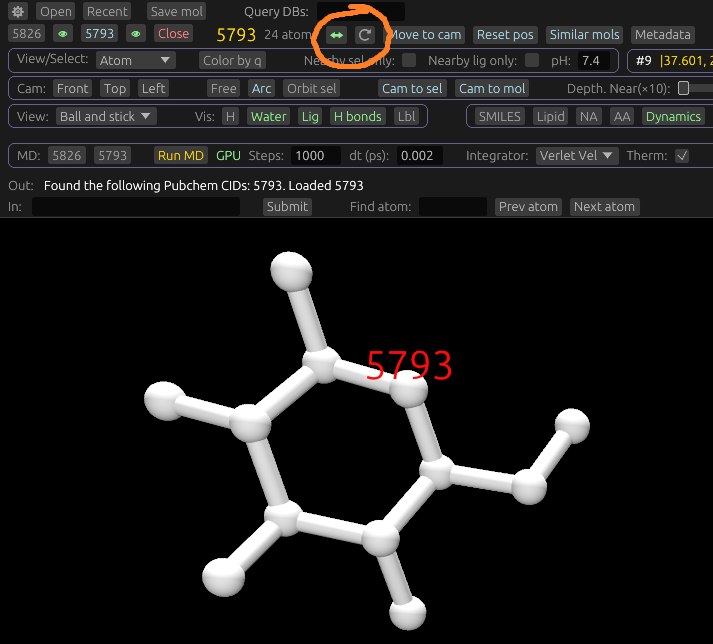
To move a molecule, make it the active molecule by right-clicking it, or selecting it via its button. To begin moving either click the ↔ button in the UI, or the M key. The entire molecule will change colors to indicate move mode is activated. (See the associated image) You can then hold the left mouse button, and drag the mouse to move it. Moving is relative to the current camera position. It acts on a 2D plane perpendicular to the direction the camera is pointed, and positioned at the molecule's centroid. To move the molecule in and out relative to the camera, use the scroll wheel. This allows a full 6 degrees of freedom in molecule motion using the mouse's 3 axes.
To exit move mode, click the ↔ button again, or press the M or Esc keys. Note that while in movement mode, the normal mouse camera controls will not work, for obvious reasons.
Rotating
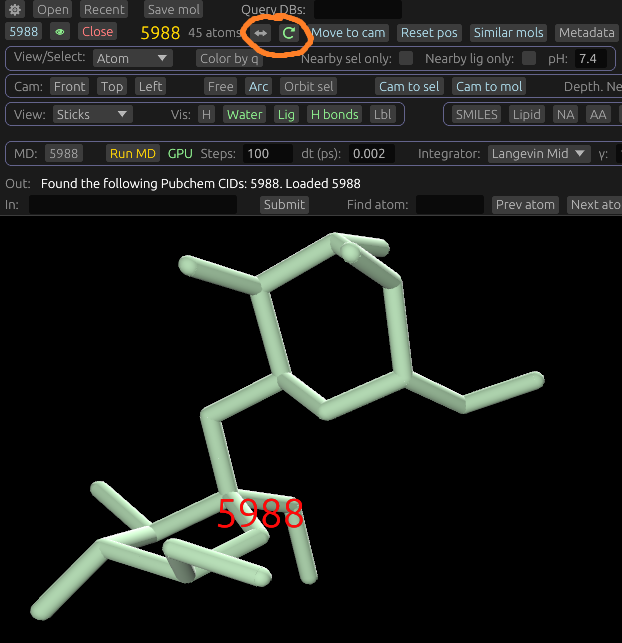
Rotating works in a similar way to moving. To activate this mode, use the ⟳ button, or R key. Exiting works in a similar way to moving. hold the left mouse button, and drag the mouse to rotate it. While holding the left mouse button, moving the mouse left and right rotates the molecule around the camera-relative up axis, and moving it up and down moves it along the right axis. Using the scroll wheel rolls the molecule around the out axis.
Note that you can toggle between move and rotate modes using the appropriate buttons and keys. For example, pressing M while in rotation mode switches directly to movement mode.